TFrameStand 2.4: dialogs, navigation and ready-made stands for FireMonkey
TFrameStand turned ten in November 2025. It started as a small idea, a way to show a TFrame in a FireMonkey application with a nice transition and almost no code, and over the years it has ended up in many apps, on every platform Delphi supports. This October it got the biggest update of its life: five releases in a few weeks, from 2.0.1 to 2.4. Some of them are about the foundations (tests, lifetime, packaging), others bring the features I have been asked about most often: dialogs that return a result, the Back button, a navigation stack, a gallery of ready-made stands, live responsive frames and an AI agent skill. Existing code keeps working: nothing was removed.
A frame, on a stand
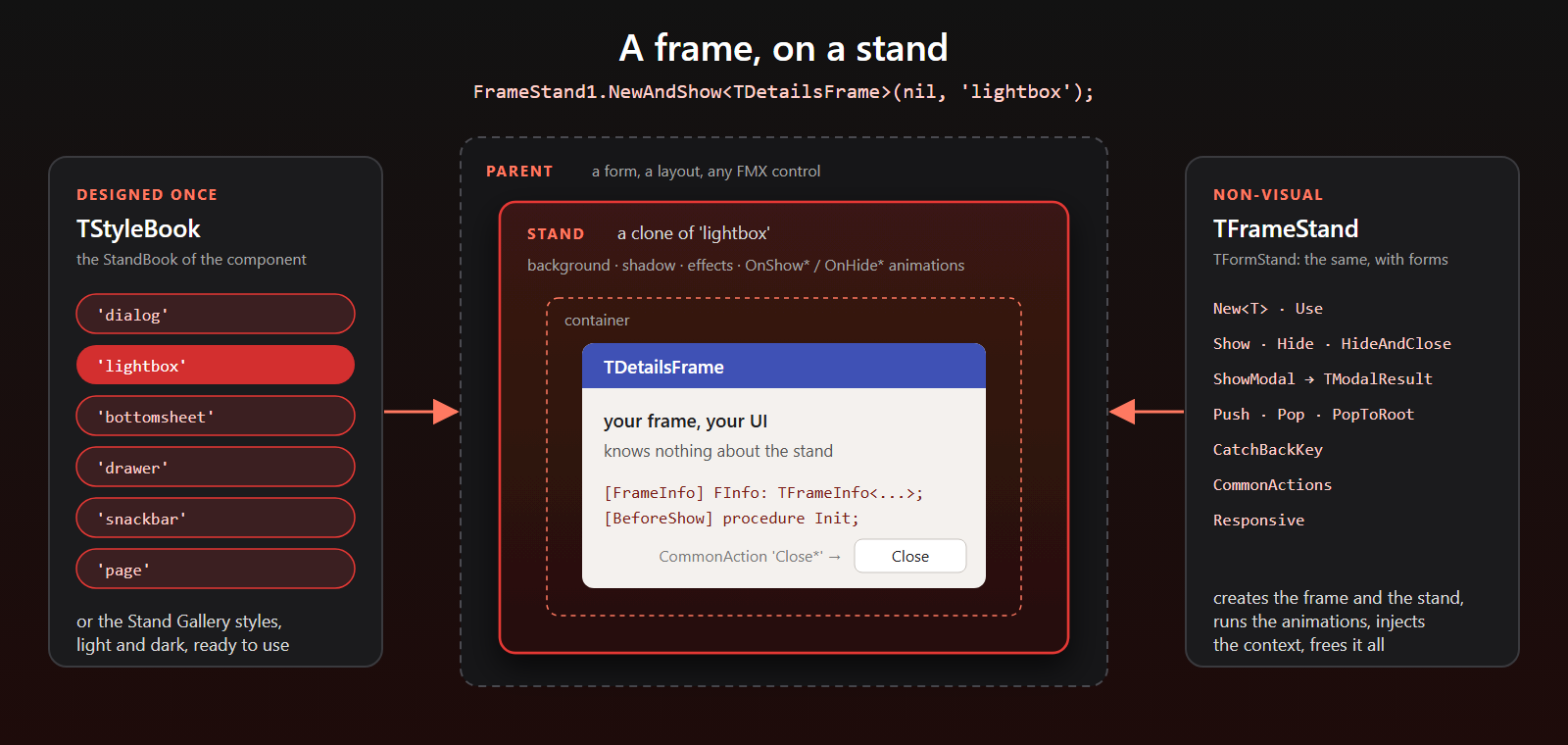
If you have never met TFrameStand, here is the idea in one picture. TFrameStand (and its twin TFormStand, for forms) is a non-visual component that puts a frame on screen through a stand: a visual layer designed once in a TStyleBook, with backgrounds, shadows, effects and animations, that sits between the frame and its parent.
uses FrameStand, SubjectStand, Frames.Details;

procedure TMainForm.ShowDetailsButtonClick(Sender: TObject);
begin
  // a TDetailsFrame inside the 'lightbox' stand, with its OnShow* animations
  FrameStand1.NewAndShow<TDetailsFrame>(nil, 'lightbox');
end;
The frame knows nothing about the stand and the stand knows nothing about the frame: the same frame can be a dialog on a phone and a side panel on a desktop, and every dialog of the application can share one look, defined in one style item. Animations named OnShow* and OnHide* run by themselves, Hide waits for them to finish, Common Actions bind behaviors to controls by name and attributes such as [FrameInfo] and [BeforeShow] inject the context into the frame.
October 2026: five releases
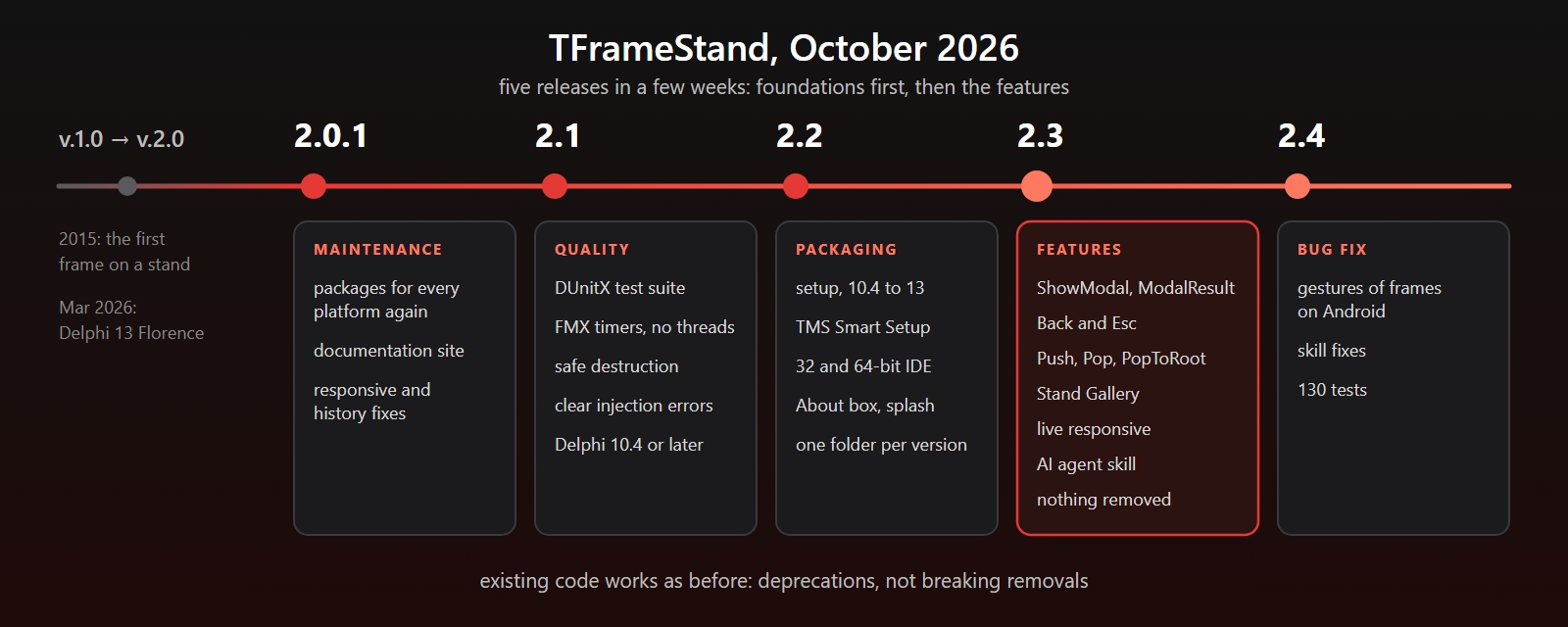
Everything started with a review of the whole library: the code, the packages, the demos, the open issues. The result was a list of defects and a plan, and the releases followed it one step at a time, each with its own tests and notes.
Solid foundations: 2.0.1 and 2.1
The first two releases are invisible in the best possible way: things that used to break, don’t anymore.
- A documentation site, at andrea-magni.github.io/TFrameStand: guides, features, the reference of the components, the demos and the release notes.
- A DUnitX test suite and a build script that compiles packages, demos and tests and runs them. It started with 54 tests in 2.1; there are 130 today.
- Timers instead of threads: hide and close delays use the FMX timer, and pending callbacks are cancelled when the subject is closed or the component is destroyed, so they never run on freed objects.
- Safe destruction: freeing a form or a parent with frames still on screen no longer crashes; the components notice and forget them.
- Clear errors: a wrong
[FrameInfo]field or[BeforeShow]parameter raises anESubjectStandErrornaming it, when the frame is created, instead of an obscure “Invalid class typecast” later on. - Fixes for the packages on every platform, responsive breakpoints, the order of Common Actions, 3D parents and adopted forms.
Delphi 10.4 Sydney is now the minimum version: the code for the old ARC compilers is gone. If you are on Delphi 10.3, 2.0.1 is the release for you.
Installing it: 2.2
TFrameStand now installs the way a component library should:
- a setup for each release, which builds and installs the packages in the RAD Studio versions you pick, from 10.4 to 13, in the 32-bit and in the 64-bit IDE;
- TMS Smart Setup:
tms install andreamagni.tframestand(once enabled the community server withtms server-enable community true); - one package folder per Delphi version, with the same package names everywhere (
FrameStandPackageanddclFrameStandPackage); - TFrameStand in the About box and on the splash screen of the IDE, and in its own page of the Tool Palette.
If you installed an older version by hand, remove the old design-time package before installing the new one: the package names changed.
Dialogs that return a result: 2.3
A dialog is not finished when it is shown: you need to know what the user chose. ShowModal takes a procedure that receives the frame and the result:
procedure TMainForm.ChangeColorButtonClick(Sender: TObject);
begin
  FrameStand1.New<TColorDialogFrame>.ShowModal(
    procedure (AFrame: TColorDialogFrame; AResult: TModalResult)
    begin
      if AResult = mrOk then
        Rectangle1.Fill.Color := AFrame.ChosenColor;
    end);
end;
Inside the frame, setting ModalResult closes the dialog:
procedure TColorDialogFrame.ColorClick(Sender: TObject);
begin
  FChosenColor := (Sender as TRectangle).Fill.Color;
  FInfo.ModalResult := mrOk; // FInfo: the [FrameInfo] field of the frame
end;
It is not modal in the blocking sense: there is no nested message loop, which would not work on mobile platforms anyway. Your code goes on, and the procedure runs when the user has decided. A dialog closed in any other way reports mrCancel, so the procedure always gets an answer.
Back and Esc come with it: set CatchBackKey and the Back button of Android, or the Esc key on the desktop, cancels the topmost dialog. Other frames opt in with BackKeyAction, and HandleBackKey does the same from your own OnKeyDown.
A navigation stack
Wizards, master and detail, settings pages: many apps are a stack of pages. Now TFrameStand and TFormStand keep it for you:
procedure TMainForm.NextButtonClick(Sender: TObject);
begin
  case FrameStand1.StackCount of
    0: FrameStand1.Push<TStep1Frame>;
    1: FrameStand1.Push<TStep2Frame>;
    2: FrameStand1.Push<TStep3Frame>;
  end;
end;

procedure TMainForm.BackButtonClick(Sender: TObject);
begin
  FrameStand1.Pop;
end;
PushMode says what happens to the page below (hidden and kept, left visible, or closed and created again by Pop), PopToRoot goes back to the first page, and Back and Esc pop the stack. StackOperation tells your animations whether the user is going forward or back, so a page can slide in from the right and go back to the left.
The Stand Gallery
A stand is a style item, and designing a good one takes some time. TFrameStand now ships six of them, ready to use, in a light and a dark style: dialog, lightbox, bottomsheet, drawer, snackbar and page.
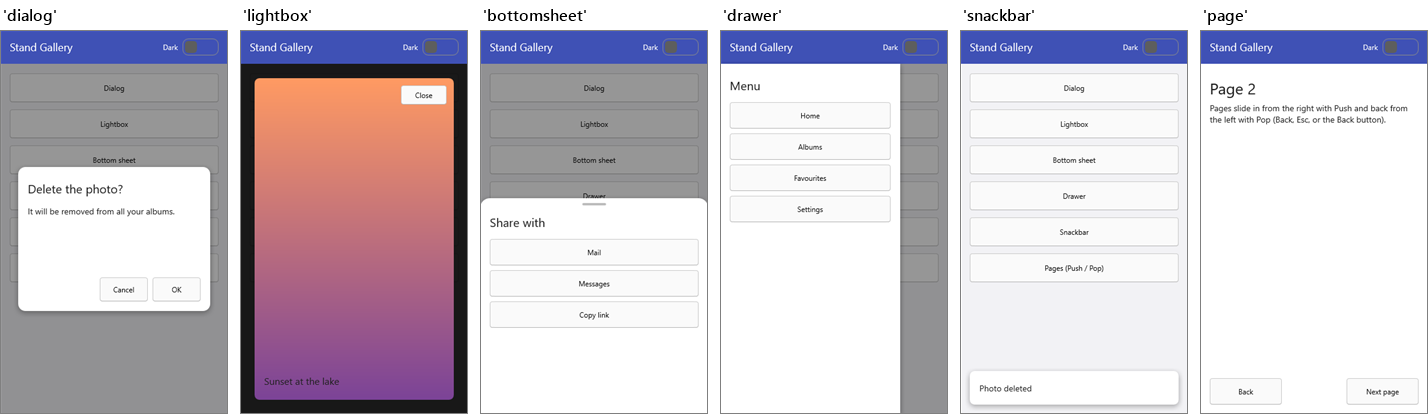
Load the style into a TStyleBook, assign it to the StandBook of the component and use the stand by name:
LInfo := FrameStand1.New<TToastFrame>(nil, 'snackbar');
LInfo.Frame.Text := 'Photo deleted';
LInfo.Show;
LInfo.HideAndCloseAfter(2500);
Their animations adapt to the size of the screen: a TStyleTag inside a TFloatAnimation takes its values from the size of the stand (StartValue=-ParentWidth), so a drawer starts just outside the window, on a phone and on a 4K monitor, and a page knows whether to slide in from the right or from the left. The same trick works in your own stands. The new Gallery demo shows all six.
Live responsive
TFrameStand could already pick a different frame class, stand or parent depending on the available width. With ResponsiveMode = rmLive it follows the window: resize it, or rotate the phone, and a frame on screen is replaced by the one defined for the new breakpoint, in the same info. Your references, the navigation stack and dialogs in progress keep working, and OnResponsiveChange lets you copy the state from the old frame to the new one.
Gestures on Android: 2.4
The latest release fixes a long-standing problem: interactive gestures (zoom, pan, rotate, double tap, long tap) of the controls inside frames shown by a stand did not work on Android. FMX registers them with the form it finds through the Owner chain, and a frame created by the stand has no owner. Now the stand registers them with the form that hosts it and gives them back when the frame is closed. If you had a workaround calling AddRecognizer on the form, you can delete it.
An AI agent skill
TFrameStand comes with an Agent Skill: instructions and an API reference that teach Claude Code, and the other agents supporting the open SKILL.md format, how to build FireMonkey user interfaces with TFrameStand and TFormStand, including the mistakes to avoid (such as closing a frame from inside its own click handler). In Claude Code:
/plugin marketplace add andrea-magni/TFrameStand
/plugin install tframestand@tframestand
With other tools: npx skills add andrea-magni/TFrameStand. Then just ask for “a confirmation dialog”, “a side menu” or “a wizard with Back support” in your FMX project. The skill is versioned with the library and updated when something in it turns out wrong: a project built with it found that TAnimation is declared in FMX.Ani, not in FMX.Types, and the fix shipped with 2.4.
Upgrading
- Nothing was removed: the old
Show(ABackgroundTask, ...)overload is deprecated, and the compiler tells you what to use instead;StyleBookandDefaultStyleNameare nowStandBookandDefaultStandName, and old forms still load. - Package names changed in 2.2: remove the old design-time package, and list
FrameStandPackageif you build with runtime packages. - Remove
FrameInfos.Clearfrom theOnDestroyof your forms, if you have it: since 2.1 the component frees its infos by itself, andClearonly makes them leak. - Delphi 10.4 or later; Delphi 10.3 users can stay on 2.0.1.
Getting started
- Download the setup of the latest release, or run
tms install andreamagni.tframestand. - Open the demos:
Gallery,Dialog,Wizard,ResponsiveandViewAndDialogsshow the new features. - Read the guide: Your first stand, Dialog results, Navigation stack, Stand Gallery and the release notes.
TFrameStand is open source (MPL 2.0) and free. If you use it, I’d love to hear about your apps: feedback, issues and ideas are welcome on GitHub.
Ten years on a stand, and still moving. Happy coding!